


Introduction
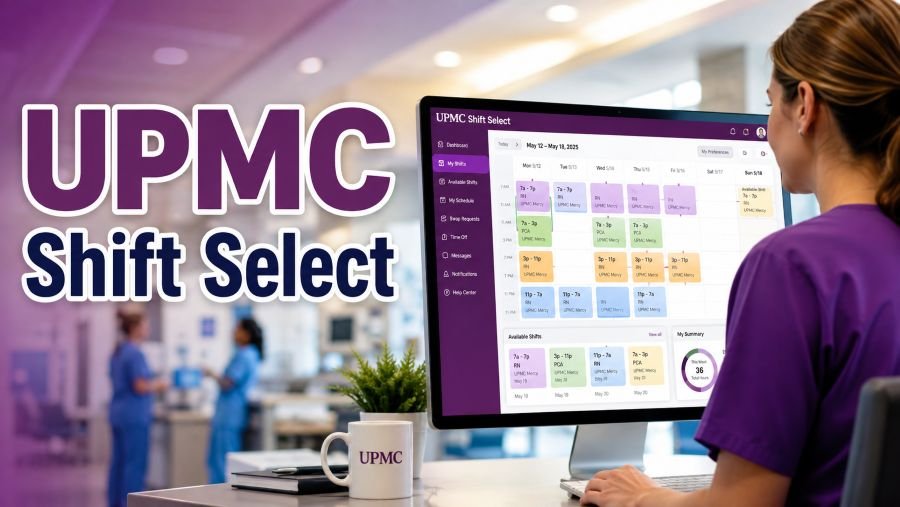
UPMC Shift Select is an employee scheduling system associated with UPMC’s workforce operations. It helps eligible staff members view work schedules, check available shifts, and take part in self-scheduling where their department allows it.
UPMC has included ShiftSelect in training for charge nurses, showing that the system is used for staffing and scheduling work within parts of the UPMC network. The exact features available to an employee may depend on their hospital, department, role, and access permissions.
This guide explains what UPMC Shift Select is, how employees can access it safely, and what to do when the system does not work.
What Is UPMC Shift Select?
UPMC Shift Select is a web-based workforce scheduling tool used by authorized UPMC employees. ShiftSelect technology is part of the healthcare workforce software now provided by symplr.
Healthcare organizations use this type of system to organize employee schedules, manage staffing requirements, and fill open shifts. Depending on the settings selected by the employer, workers may be able to:
- View their current work schedule
- Check available or open shifts
- Request additional shifts
- Participate in self-scheduling
- Review scheduled hours
- Submit certain schedule requests
- Access scheduling information from a mobile device
Symplr explains that its workforce platform supports staff scheduling, open-shift management, mobile access, timekeeping, and workforce planning. However, every feature may not be enabled for every UPMC employee.
Is UPMC Shift Select an Official UPMC Tool?
Yes. Official UPMC continuing-education pages have referred to ShiftSelect as an application used by charge nurses. A September 2024 UPMC training session, for example, taught nurses about ShiftSelect and TeleTracking functions.
The scheduling technology itself comes from API Healthcare, which later became part of symplr’s workforce-management products. The current symplr Workforce app also includes features connected with ShiftSelect, although availability depends on the organization’s configuration.
How to Access UPMC Shift Select
UPMC employees should use the official access method provided by their manager, department, onboarding documents, or UPMC staff portal.
1. Open the Official UPMC Staff Resources Page
UPMC maintains a staff-resources page that provides authorized employees with access to services such as Infonet and MyApps. UPMC states that these resources can be accessed from a computer or mobile device.
2. Select UPMC MyApps
Open MyApps from the staff-resources section and sign in with your UPMC organizational account.
UPMC describes MyApps as a secure way for healthcare professionals to reach UPMC network applications remotely through an internet connection.
3. Find ShiftSelect or the Workforce Application
After signing in, search for an application named:
- ShiftSelect
- API Healthcare
- Staffing and Scheduling
- Workforce
- symplr Workforce
The name displayed may differ according to the employee’s department or the version currently used by UPMC.
4. Enter Your Authorized Employee Details
Use only the username, organizational account, or sign-in instructions issued by UPMC. Employees should never use personal healthcare portal credentials unless UPMC has specifically instructed them to do so.
UPMC Shift Select is an employee tool. It is not the same as the MyUPMC patient portal.
Direct UPMC Shift Select Login
A UPMC-branded API Healthcare address appears in search results for the ShiftSelect system. However, employees should preferably reach the platform through UPMC Staff Resources, MyApps, or an approved bookmark supplied by their department.
This approach reduces the risk of entering an employee password on a fake or outdated third-party login page.
Avoid unofficial websites that promise automatic access to UPMC Shift Select. Some third-party pages may copy login-related keywords without having any connection to UPMC or symplr.
How to View Your Work Schedule
After successfully signing in, look for an area labelled My Schedule, Calendar, or a similar name.
The scheduling calendar may allow eligible users to:
- View assigned shifts.
- Check the date and starting time of each shift.
- Review the assigned department or location.
- Look for unfilled shifts.
- Submit scheduling or availability requests.
Symplr’s workforce documentation says calendar features can include schedule viewing, availability management, open-shift requests, and self-scheduling when an organization has enabled those options.
Always confirm important schedule changes with your manager or unit because submitting a request may not mean that it has been approved.
How to Request an Open Shift
The exact screen may differ, but the normal process is usually simple:
- Sign in to UPMC Shift Select.
- Open the Open Shifts or Available Shifts section.
- Select the correct date.
- Review the location, time, department, and required skills.
- Choose the shift you want.
- Submit your request.
- Check whether the request is pending, accepted, or declined.
A requested shift should not be treated as confirmed until it appears as approved or is confirmed by the appropriate supervisor.
Open shifts may only appear when the employee has the necessary role, skills, department access, and scheduling permissions.
How Self-Scheduling Works
Self-scheduling allows eligible employees to select preferred shifts during an open scheduling period.
The feature may only be visible when:
- The self-scheduling period is open.
- The employee has the correct system role.
- The employee’s department permits self-scheduling.
- Suitable shifts are available.
- The employee meets the required scheduling rules.
Symplr’s official configuration guide explains that the self-scheduling option can be limited according to organization units, employee roles, schedule phases, activity codes, and required working hours.
Selecting a preferred shift does not always guarantee final approval. Managers may need to balance employee preferences with staffing levels and patient-care requirements.
UPMC Shift Select Mobile Access
Some scheduling functions may be available through the symplr Workforce mobile app. The app combines selected features from ShiftSelect, staffing and scheduling, and time-and-attendance systems.
Available functions depend on what UPMC has enabled for the user’s department and account.
Before installing or using an app:
- Confirm the app name with your manager or IT department.
- Download it only from an official app store.
- Never provide your password to an unofficial scheduling app.
- Follow UPMC security and device-use policies.
UPMC Shift Select Login Problems
Employees may sometimes experience a blank page, rejected password, missing application, or unavailable schedule. Several simple steps can help.
Check Your Username and Password
Make sure that you are using the correct UPMC organizational credentials. Check for typing mistakes, unwanted spaces, or an activated Caps Lock key.
Use the Official Access Route
Start from UPMC Staff Resources or MyApps instead of using an old search result or unofficial login directory.
Try an Updated Browser
Use a current version of a trusted browser such as Microsoft Edge, Google Chrome, or Safari. Clear the browser cache or open a private browsing window when an old session causes problems.
Complete Required Authentication
UPMC may require an authenticator, security code, certificate, or another verification method for remote access.
Check Your Account Permissions
An employee may be able to sign in but still not see ShiftSelect. This can happen when the application has not been assigned to the account or when the employee lacks access to a particular unit.
Contact your supervisor, scheduler, or UPMC IT support if the application is missing.
Contact the UPMC Help Desk
UPMC directs network users with login difficulties, connectivity problems, authenticator resets, and general computer issues to the UPMC Help Desk at 412-647-HELP (4357).
Do not share your full password with anyone who contacts you unexpectedly.
Why Are Open Shifts Not Appearing?
Open shifts may be missing for several reasons:
- No suitable shifts are currently available.
- The open-shift period has not started.
- Your department has disabled the feature.
- Your employee role does not have permission.
- You do not meet a required skill or unit condition.
- The shift has already been requested by another worker.
- The schedule is being reviewed or updated.
- A browser or connection problem is preventing the page from loading.
The correct next step is to contact the department scheduler or manager. They can check whether the issue relates to staffing needs, employee permissions, or system configuration.
Can Employees Change a Confirmed Shift?
The system may allow employees to submit a request, but a confirmed schedule normally cannot be changed simply by selecting another shift.
Employees should follow their department’s policy for:
- Shift exchanges
- Schedule changes
- Time-off requests
- Absence reporting
- Weekend requirements
- Holiday coverage
- Overtime approval
A request should be considered pending until it is approved through the proper process.
UPMC Shift Select Security Tips
Employee scheduling systems may contain private workplace information. Follow these basic security steps:
- Use only official UPMC or symplr access pages.
- Never send your password through email or text.
- Do not save login details on a shared computer.
- Sign out after checking your schedule.
- Avoid public computers and unsecured networks.
- Do not approve an unexpected authentication request.
- Report suspicious login pages to UPMC IT support.
UPMC security training advises employees to protect passwords and confidential information and avoid accessing UPMC data through unsafe public computers or networks.
Frequently Asked Questions
What is UPMC Shift Select used for?
It is used for employee staffing and scheduling. Eligible staff may use it to view schedules, check open shifts, make requests, and participate in self-scheduling.
Can patients use UPMC Shift Select?
No. It is an employee workforce tool, not a patient portal.
Is Shift Select the same as MyUPMC?
No. MyUPMC is designed for patients to manage healthcare information. ShiftSelect is associated with employee scheduling.
Can I access UPMC Shift Select from home?
UPMC says its staff resources and MyApps can be accessed through computers and mobile devices. Actual remote access may depend on authentication requirements and employee permissions.
Why can I log in but not see my schedule?
Your department may not have published the schedule, your account may lack permission, or the application may not be correctly assigned. Contact your manager, scheduler, or UPMC Help Desk.
Does requesting a shift guarantee approval?
No. A request may need approval and can depend on staffing requirements, department rules, and employee qualifications.
Final Words
UPMC Shift Select gives authorized employees a convenient way to view schedules and interact with available shifts. The safest access method is through official UPMC Staff Resources, MyApps, or instructions supplied directly by a UPMC manager.
Employees experiencing login or access problems should avoid unofficial login websites. They should contact their supervisor, department scheduler, or the official UPMC Help Desk for assistance.
